+ 358 (0)29 449 8001it@uwasa.fi
For Students
Outlook Web App: forwarding emails
Log in to Outlook Web App
- Choose "People" from toolbar.
- Choose "New".

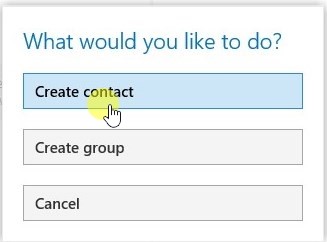
Choose "Create Contact" in popup window, .
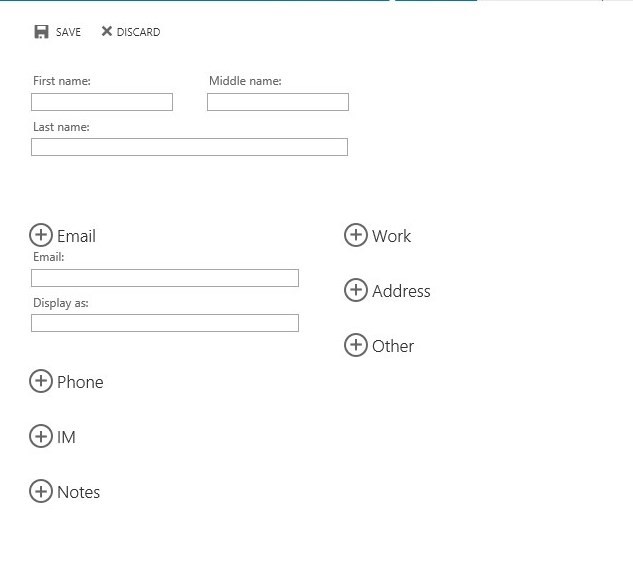
Insert your private mail address and choose "Save"
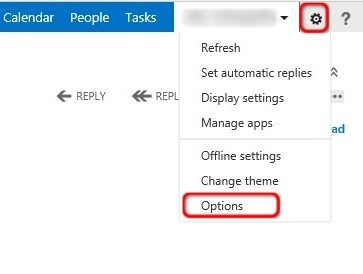
Go back to main page and choose Tools from top-right corner of Web App. Choose "Options" from dropdown menu.
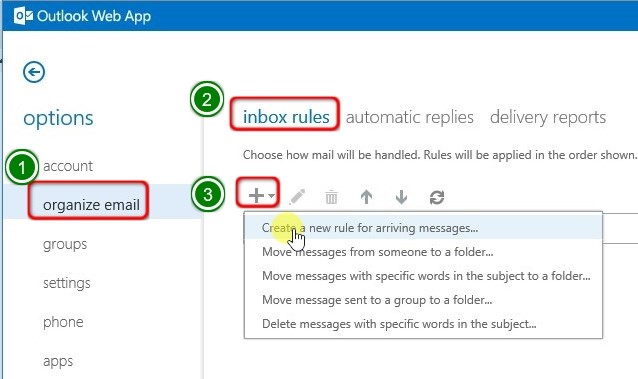
- Choose "organize email".
- Choose "inbox rules."
- Choose Create a new rule for arriving messages..." from dropdown menu.
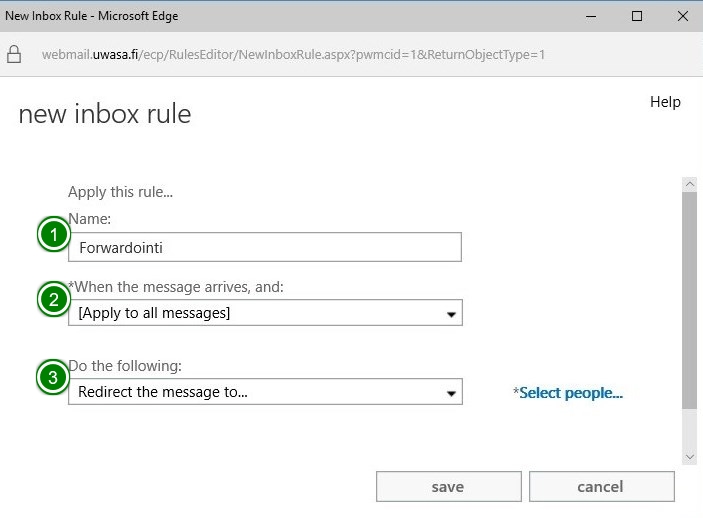
1. Name the rule.
2. Choose "[Apply to all messages]" from dropdown menu.
3. Choose "Redirect the message to..." from dropdown menu and browse contact information, which you created earlier.
Choose "Save".
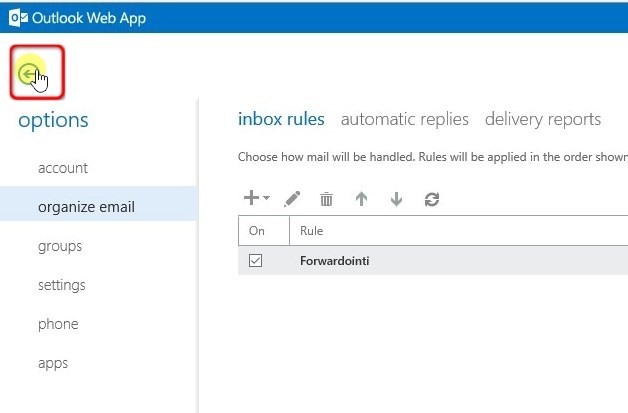
Finish process by returning back to main page via return button